Complete installation instructions for Open Server 6 (2025) with CMF Cotonti and phpMyAdmin

Complete instructions for installing the local environment of Open Server Panel 6.3.5 (2025) for deploying the site on CMF Cotonti and phpMyAdmin with MySQL 8.0 database

Rating based on reviews:
Total stars received: 5
Total reviews: 1
Average rating: 5
Filed under: User Blog

Full Installation Guide for Open Server 6 (2025) with CMF Cotonti and phpMyAdmin


An update has been released! 


The latest and newest instructions CAN BE FOUND at the new “click me” link.


This guide is typical and not strictly mandatory. Setting up OSPanel 6 up to the first successful site launch usually takes about 20 minutes. 

After spending 5-10 minutes following this guide step by step, you will no longer need such instructions, because you will learn how to immediately install any modern engine on your local computer for your development.

If something doesn’t work, feel free to ask questions and find solutions in the section “Local Development of Cotonti on Open Server 6”.


att_697.png


1. Installing Open Server 6 

  1. Download the Open Server 6 distribution from the official website: https://ospanel.io/.
  2. Install it into a folder, for example C:\OSPanel_640\.
  3. Launch the Open Server Panel shortcut from the desktop or run C:\OSPanel_640\bin\ospanel.exe.
  4. Go to menu → Settings → Modules and select:
    • PHP 8.4+
    • MySQL 8.0 (or MariaDB 10.6+)
    • Apache 2.4
  5. Save the settings and restart Open Server.  


2. Creating a Cotonti Project 

  1. Navigate to C:\OSPanel_640\home
  2. Create a folder: 

    cotonti.local
    
  3. Inside it, create the following structure: 

    cotonti.local
    ├── .osp
    └── public
  4. In the .osp folder, create a file project.ini with the following content: 

    [cotonti.local]
    public_dir = {base_dir}\public
    
  5. Download the latest CMF Cotonti source code from GitHub
  6. Extract the archive into the public folder. 


3. Installing phpMyAdmin 

  1. Create a folder in C:\OSPanel_640\home:

    phpmyadmin
    
  2. Inside it, create the structure:

    phpmyadmin
    ├── .osp
    └── public
    
  3. In the .osp folder, create a file project.ini:

    [phpMyAdmin]
    public_dir = {base_dir}\public
    
  4. Download phpMyAdmin from https://www.phpmyadmin.net/downloads/.
  5. Extract the archive into the public folder.


4. Configuring phpMyAdmin

  1. In the folder phpmyadmin/public/ find the file:

    config.sample.inc.php
    
  2. Copy and rename it to:

    config.inc.php
    
  3. Open config.inc.php and configure:

    <?php
    /* phpMyAdmin settings */
    /* Unique phrase for cookie authentication */
    $cfg['blowfish_secret'] = 'ThisIsMyStrongBlowfishSecretKey1234567890'; // at least 32 characters
    /* Servers */
    $i = 0;
    $i++;
    $cfg['Servers'][$i]['auth_type'] = 'cookie'; // Cookie-based authentication
    $cfg['Servers'][$i]['host'] = 'MySQL-8.0'; // instead of "localhost" — specify the exact MySQL version you are using
    $cfg['Servers'][$i]['user'] = 'root'; // MySQL user
    $cfg['Servers'][$i]['password'] = ''; // Password (empty by default in Open Server)
    $cfg['Servers'][$i]['compress'] = false;
    $cfg['Servers'][$i]['AllowNoPassword'] = true; // Allow empty password
    ?>
    
  4. Save the file.
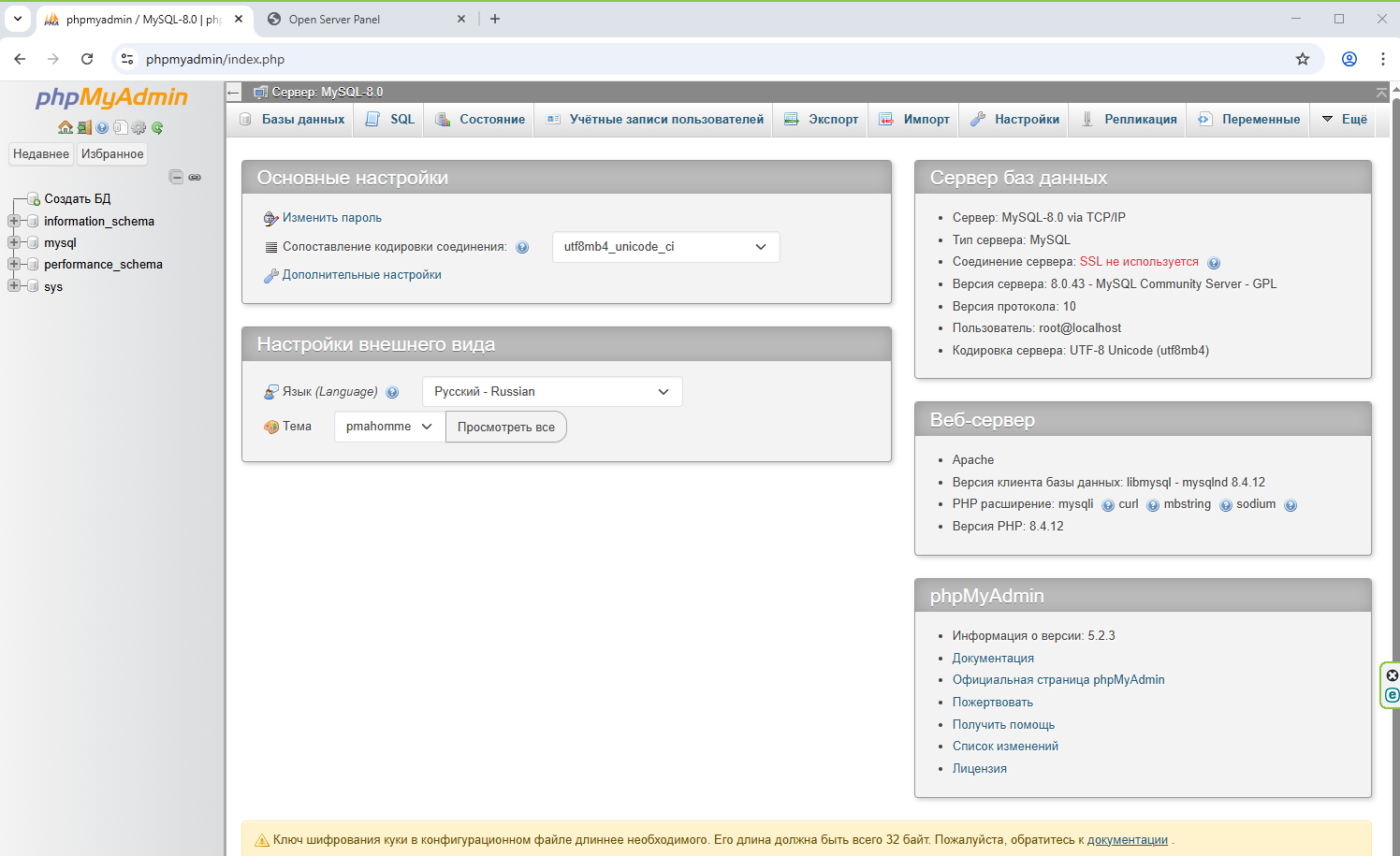
  5. phpMyAdmin is now available at:

    http://phpmyadmin/


5. Creating a Database for Cotonti

  1. Open in the browser http://phpmyadmin/.
  2. Log in as user root (password is empty).
  3. Go to the tab Databases → Create.
  4. Specify the database name:

    cotonti_db
    

    Collation: utf8mb4_general_ci.

  5. Click Create.


6. Installing Cotonti

  1. Open in the browser:

    http://cotonti.local/
  2. In the Cotonti installer, enter:
    • Database server:  DO NOT use   localhost !!! For example, use 'MySQL-8.0';     // instead of "localhost" specify your exact DBMS and MySQL version
    • Database name: cotonti_db
    • User: root
    • Password: empty
  3. Set the admin username and password for the site.
  4. Wait for the installation to complete.
  5. Delete or rename install.php in the site root.


Minimal project.ini configuration from the .osp folder

[cotonti.local]
public_dir = {base_dir}\public
php_engine = PHP-8.4
web_engine = Apache

where [cotonti.local] is your project domain/folder name


My local Cotonti site connection settings in config.php located at E:\OSPanel_640\home\cotonti.carbon\public\datas:

// ========================
// MySQL database parameters. Change to fit your host.
// ========================
$cfg['mysqlhost'] = 'mysql-8.0'; // Database host URL
$cfg['mysqlport'] = ''; // Database port, if non-default
$cfg['mysqluser'] = 'root'; // Database user
$cfg['mysqlpassword'] = NULL; // Database password
$cfg['mysqldb'] = 'cotonti_carbon'; // Database name
// MySQL database charset and collate. Very useful when MySQL server uses different charset rather than site
// See the list of valid values here: https://dev.mysql.com/doc/refman/9.0/en/charset-charsets.html
$cfg['mysqlcharset'] = 'utf8mb4';
$cfg['mysqlcollate'] = 'utf8mb4_unicode_ci';
// ========================
// Main site URL without trailing slash.
// ========================
$cfg['mainurl'] = 'https://cotonti.local';
// ...... rest of the code 


7. Testing Everything

  • Cotonti site:

    http://cotonti.local/
  • phpMyAdmin:

    http://phpmyadmin/


Official OSPanel 6 installation guide


If you encounter issues opening sites from Open Server Panel v.6.x.x and see messages in the browser such as:

"Hmm. We can’t reach this website. We couldn’t connect to the server example.local." (Firefox)
or
"Can’t access the site. Couldn’t find the IP address of the server example.local" (Chrome and others)


Solutions to these problems are described and discussed in a separate forum thread.

Discussion topic and first-launch issues are in the section Local Development of Cotonti on Open Server 6

 If you need a guide for newer versions of “Open Server Panel v.6.x.x” — write a request in the comments or on the forum. 


Reviews 1

Пункт №2. Создание проекта. Вот в чем была проблема. Решено!

Переходя с 5-ки на 6-ку долго сам как котенок слепой "тыкался" наугад. У меня проблема была именно с названием папки, которая будет корнем сайта. Большое спасибо за инструкцию. в ней для меня решением проблемы стало следование пунктам раздела 2 этой инструкции.

2025-12-29 19:55


Comments (0)

No comments yet
Only registered users can post new comments

Recommended Products and Services

Index36: Modern Theme for Cotonti CMF

Index36: Modern Theme for Cotonti CMF

Index36, a website theme for Cotonti, is a complete website management ecosystem. The main focus is
Cotonti CMF: Plugin Installation, Integration, and Adaptation

Cotonti CMF: Plugin Installation, Integration, and Adaptation

professional services for the installation, deep integration and adaptation of plug-ins for Cotonti
Market PRO v.5+ module for Cotonti CMF

Market PRO v.5+ module for Cotonti CMF

Free solution for scalable E-Commerce projects: you can create a showcase of blacksmith's products

Content author

webitproff

Offline

Sodium Carbonate

Last logged: 2026-06-21 11:21

  • Чем могу помочь?

    Оказываю весь спектр услуг по CMF Cotonti. Разработка открытых и закрытых корпоративных интернет порталов, небольших социальных сетей, торговые площадки, маркетплейсы, биржи фриланса, каталоги товаров оптовых поставщиков, интернет-магазин под заказ, чтобы делать совместные покупки и групповые совместные продажи от имени нескольких продавцов.

  • Разработки на GitHub бесплатно
    • Page published: 2025-11-05 15:47
    • Last update: 2026-03-01 09:25
    • Language:

    Recommended forum topics for this article

    OSPanel 6 и проблемы при первом запуске

    OSPanel 6 и проблемы при первом запуске

    В Open Server Panel 6 не открываются сайты. Решение проблемы, если ошибка и не отображаются в
    #170 | Постов: 1 | Просмотров: 1089
    "Index36" - основной шаблон сайта для Cotonti. Руководство по установке

    "Index36" - основной шаблон сайта для Cotonti. Руководство по установке

    Инструкция по установке темы "Index36" на сайт Cotonti Siena CMF. Удачной установки и красивого
    #188 | Постов: 7 | Просмотров: 1530