How to set up multilingualism for products, localization of content in different languages in the modules "Tasks", "Services", "Market" in the user package (collection) of redesigned modules and plugins, in the assembly of scripts of the freelance exchange and marketplace.
The algorithm of actions for all three modules is the same.
Let's look at the instructions using the example of the - market module. We use the extension names according to the code in the admin panel in the list of extensions.
Requirements before starting work on the creation of multilingual content, - the structure of categories and products of the marketplace.
1. Installed the "MarketPlace" module of the commercial version - market.
2. The installed and configured plugin "Content Internationalization" - i18n. How to set it up is the instruction here.
Keep in mind that item no. has not been completed yet2 - there is no point in moving on to point No. 3
3. Install the plugin "Module Market Content Internationalization" - i18n4market and proceed.
Work progress and procedure
It all starts with the multilingualism (internalization) of the module structure itself.
For example, there are many categories. I will write in my own way, that is, for me this way is faster, but you can always achieve the same goal in different ways.
1. We are preparing the codes of the root (parent) categories in which there will be multilingual products.
How to fill in the category structure correctly is a separate topic.
open two tabs - in one the structure of the market module, and in the other the configuration of the i18n4market plugin and copy the root category codes from the fields of the first into the field of the second, in one line, separated by commas.
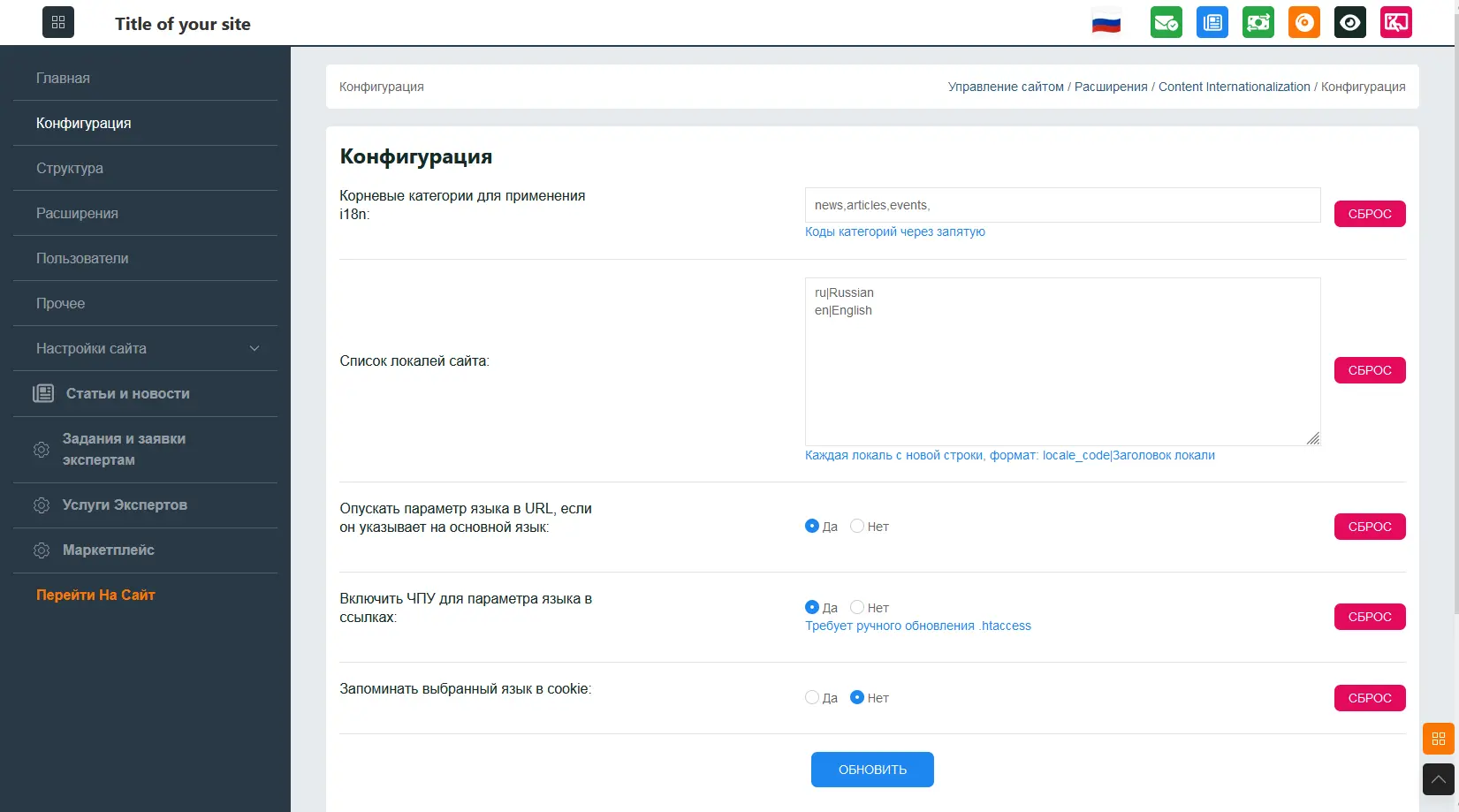
2. Configuration of the plugin "Module Market Content Internationalization" - i18n4market.
Go to the settings, and to the right of the "Root categories for i18n4market application" insert the copied category codes.
In the form below, there is a list of site locales and each locale with a new line, format: locale_code|Locale header, as an example:
en|English
ru|Russian
ua|Ukraine
That's it. close the admin panel and go straight to the list of products.
3. Multilingualism of the categories of the "marketplace" module, aka "Internationalization of the structure".
3.1. Open two templates of your theme at once market.list.tpl and market.tpl - insert two buttons in both
the code of which is indicated in the topic of discussion on the forum.
3.2 The market.tpl template.
in the right place "at hand" we place buttons (links), the code of which is indicated in the topic of discussion on the forum.
3.3. The very process of internalization of the structure.
In paragraph 3.1, we put two buttons in the product list template and in the product card itself, each second in each case is a button with a link to the page for creating an English-language equivalent of the category name and its description, if at the time of clicking on the link we selected the English interface language.
If Russian is selected, when clicking on the link, a choice of the locale will open, which one we will translate, meaning the categories and description. The goods themselves are still far away. When we translate all the categories, and only then we begin to translate the goods.
Translating the structure of the market module into English
We are translating the structure of the market module into Ukrainian
4. Translation of product cards (translation of publications in the marketplace module)
It is only after the structure / categories have been completely translated into all languages that we start with the goods.
4.1. Go to any product card. in paragraph 3.2, we have prescribed special buttons for transfer operations there.
whatever interface language is currently selected, there will still be a link to the translation. see the screenshots.
4.2. Click the "translate" button and fill in the translation values, for example, we have Ukrainian.
4.3. Save and return to the product card.
By clicking the save button, we automatically get into the Ukrainian-language version of our product card, because we translated it into Ukrainian.
Now we have additional buttons for managing - editing the translation and a list of existing localizations for this product card. see the screenshot.
4.4. Changing the interface language to English
and we additionally have a link "Translate" - that is, translate into English. Click on it. We are translating. We are saved.
See the screenshots and ask questions in the discussion topic on the forum.


 Русский